Clero’s conversation model affects which controls are available. A long-running project-team conversation is not the same as a separate flexible chat.
Persistent team and Flexible chats
The current implementation defines two project conversation modes:
- Persistent team: One ongoing conversation for each agent. Messages and delegated work queue in that conversation.
- Flexible chats: Separate conversations with agents, including the project manager. Each conversation has its own context, so parallel work needs explicit coordination.
The source describes mode changes as keeping history separate rather than merging it. Some earlier conversations can become read-only when an ongoing team conversation is required. Make mode changes while project work is idle and read the current explanation before proceeding.
The original live documentation demo used the canonical project-manager conversation. It did not expose a new-chat, branch, or rewind action there. The branching and rewind procedures below are source-backed for eligible conversations; they were not executed in that live demo. The Ask and Reply screenshots use a separate interactive demonstration.
Continue the current conversation
Use the current conversation for a revision that depends on the result you just reviewed. Identify the output and the change:
Keep the checklist’s structure. Rewrite the First Week section as three concrete actions and preserve the fictional-content notice.
When moving to a different conversation, name the sources and recap important decisions. Separate context does not guarantee every earlier chat is automatically available.
Ask about selected text
In a writable agent conversation, select a phrase or a few lines within one AI message. The Ask | Reply menu appears above the selection. These actions work in both Persistent team and Flexible chats; they do not change the conversation’s history. The screenshots below use a fictional launch-plan conversation.
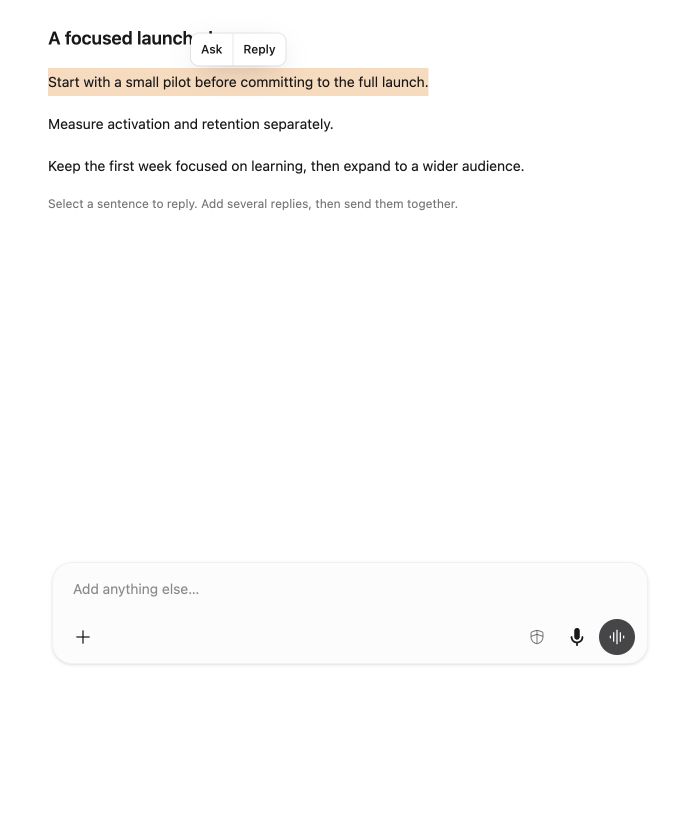 Screenshot detailSelect text within a single AI message to show Ask and Reply.Enlarge ↗
Use Ask when you want to ask a question about the selected passage:
- Highlight the passage and select Ask.
- Clero places the passage above the main composer as quoted context.
- Write your question in the composer, for example: “What would a small pilot look like?”
- Select Send when you are ready.
Selecting Ask does not send a message. You can remove the quoted context before sending if you change your mind.
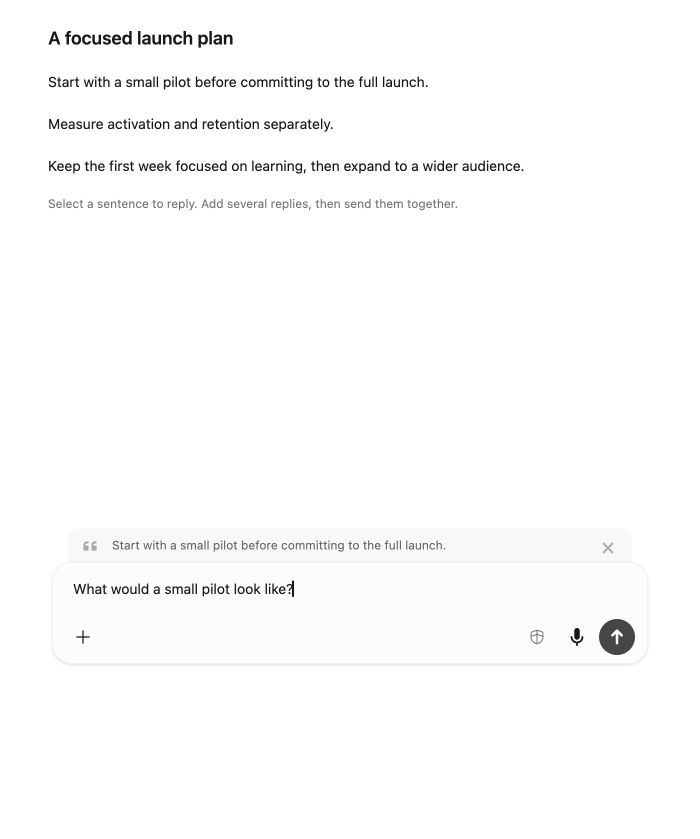
Reply to several passages
Use Reply when you want to pair a specific passage with your response:
- Highlight a passage in an AI message and select Reply.
- Write your response in the small editor beneath the quote.
- Press Enter or select Add to message. This adds a reply block to the main composer; it does not send it.
- Select another passage and repeat. You can add several replies to one message.
Use Shift+Enter for a new line in the small reply editor. Press Esc, select Cancel, or click outside it to dismiss an unfinished reply.
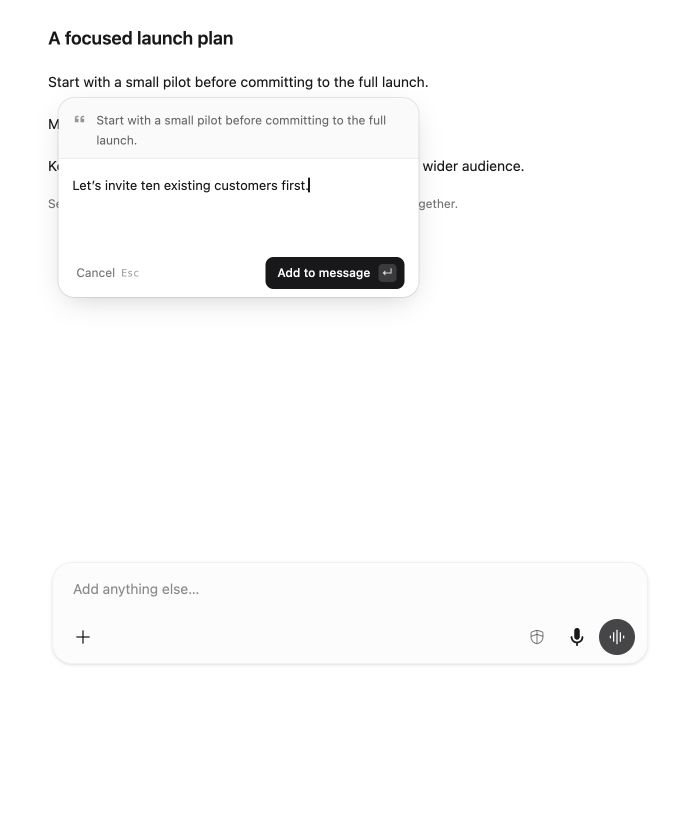
Review and send your replies
Replies appear as compact blocks alongside the composer’s attachments. Each block shows the beginning of your reply. Hover over a block, focus it with the keyboard, or select it to preview both the original quote and your response. Use its × control to remove that pair.
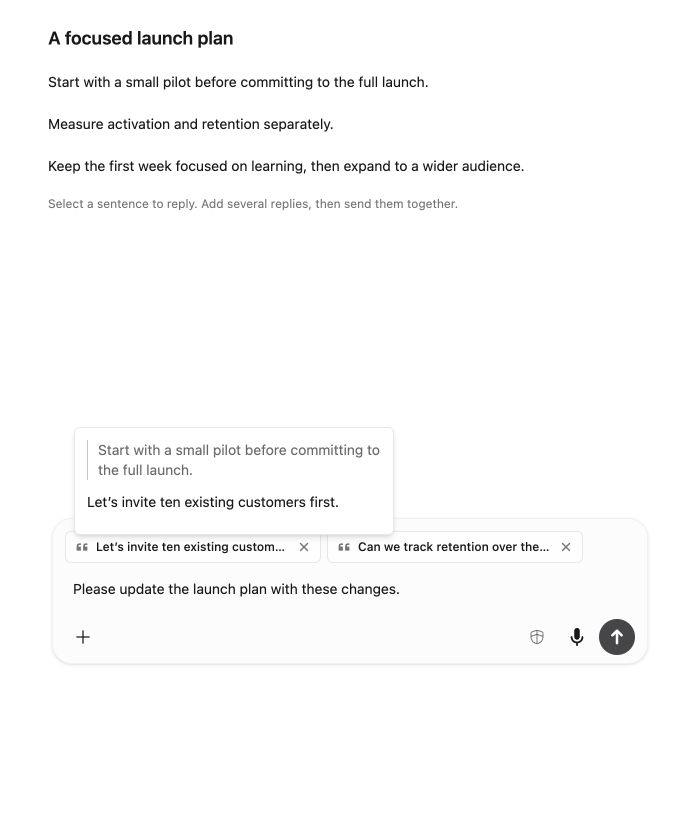
You can also write an overall instruction in the main composer. Select Send once to send all the reply pairs and your extra text together. A message containing only reply blocks can be sent too.
The sent message displays each quoted passage followed by your reply as normal text, then any main message text. The agent receives that combined message; the reply blocks are not uploaded files or separate requests.
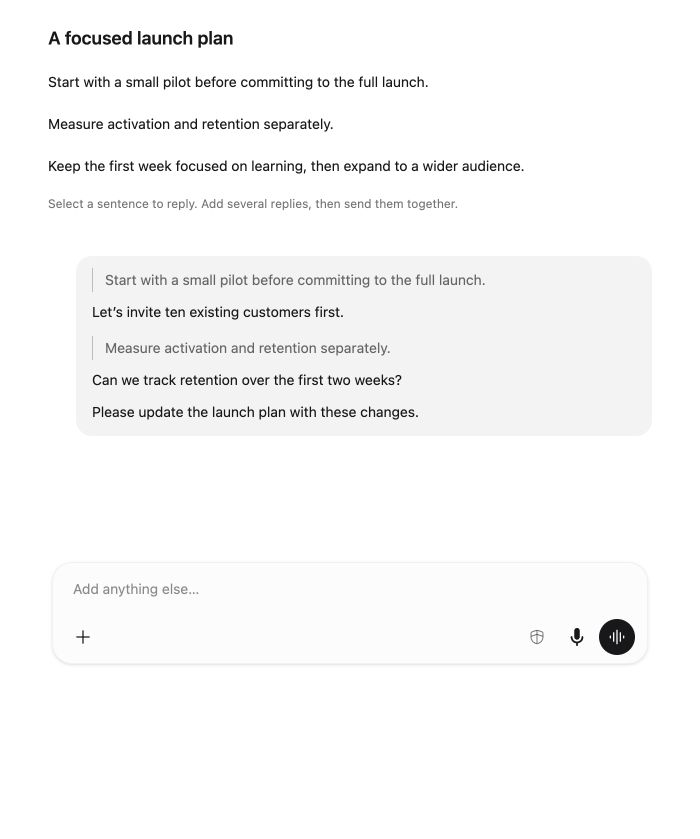 Screenshot detailBoth replies and the extra instruction appear as one message.Enlarge ↗
If sending fails, the reply blocks and main text are restored when the composer is still empty. A newer draft is not overwritten. Unsent reply blocks are saved with the conversation draft, so reopening the same conversation restores them.
If the selection menu is missing, check that you selected text inside a single AI message in a writable conversation. It does not appear for your own messages or selections spanning multiple messages.
Branch in a new chat
In an eligible, settled Flexible chats conversation:
- Find the message where the alternative should begin.
- Select Branch in new chat.
- Open the new conversation, whose title begins Branch:.
- Continue there and return to the original from the chat list when needed.
The branch copies the conversation through the selected message. Later original messages are excluded, and the original conversation remains available.
The selected message matters: branching from an AI reply waits for your next instruction. Branching from your own message reruns that request. Check for possible external effects before rerunning a request that sent, published, or changed anything.
Branching is suppressed for persistent conversations, including the space assistant and ongoing team-agent chats. Do not expect the action to appear everywhere.
Edit a message to rewind
For an eligible message you wrote:
- Select Edit message, shown with a return-arrow action.
- The message is loaded into the main composer with a quoted reference.
- Change the text and read the warning about removing later replies.
- Send only if you intend to replace that input and rerun from that point.
To leave rewind mode before sending, remove the quoted reference. Sending removes later conversation history and associated task attachment links. It does not undo completed external actions or shared-file edits.
If you want to preserve both approaches, use a branch where supported instead of replacing history.
Why an action may be missing
Eligibility depends on conversation type, ownership of the message, retained history/checkpoints, and whether work or another interaction is active. Canonical project-manager and read-only legacy conversations have additional restrictions.
Wait for active work to settle and check the conversation type. Do not interpret a missing control as permission to bypass a restriction or as evidence that content was deleted.