Mini Apps provide a focused interface around project work. The live demo verified the project’s Mini Apps area and marketplace; no app was installed or generated.
Open the project’s apps
- Select the project.
- Choose Mini Apps.
- Open Project apps to see apps already associated with the project.
An empty state is expected when no apps have been added.
Browse the marketplace
Choose Add new app → Choose from Marketplace. The inspected marketplace has categories including Finance, Marketing, Productivity, and Project Management.
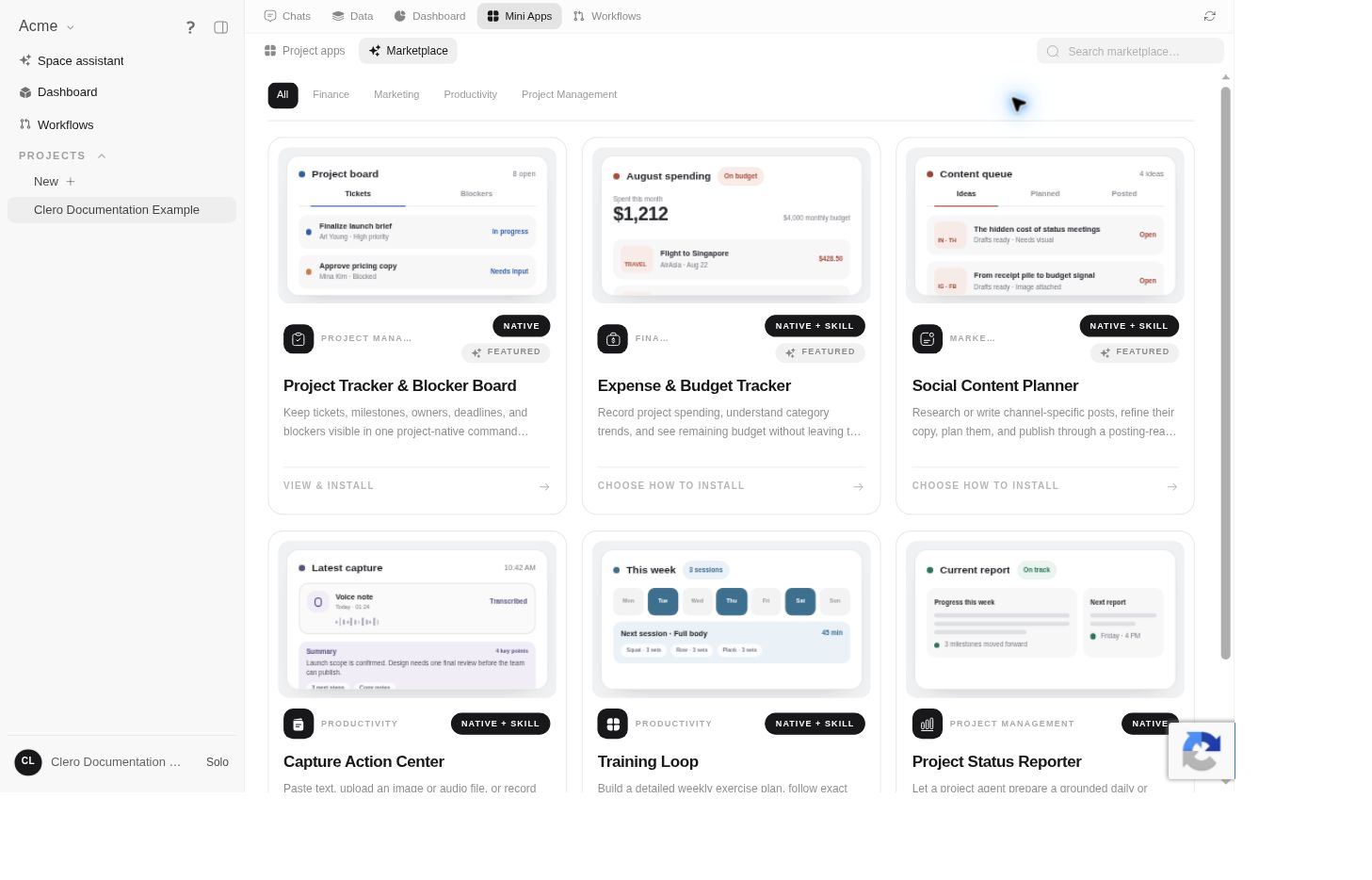 Screenshot detailMarketplace entries were inspected; none was installed.Enlarge ↗
Examples visible in the catalog include Project Tracker & Blocker Board, Social Content Planner, and Project Status Reporter. Availability and the content of the catalog can change.
Review before adding
Inspect what the selected app needs from the project: data, agents, connections, and any actions it can trigger. Check whether it fits the actual task rather than installing every plausible app.
A marketplace preview is not proof that the app is configured or has access to the data it needs.
Describe an app to the agent
Add new app also offers Create app with agent. The inspected interface describes this as starting a new conversation with the project manager.
Prepare a concrete request: the intended user, the problem, the required inputs, and what actions the interface should support. State which external actions or sharing changes need review.
App creation, installation, execution, and sharing were not exercised in the documentation test. Keep a proposed app in review until those parts have been checked in your project.