This walkthrough was completed in a dedicated fictional demo workspace. The result was a project named Clero Documentation Example, a manager named Documentation Lead, and a linked welcome-checklist document.
Before you begin
Sign in, then choose one small result. Prepare a project name, a one-sentence goal, and a first deliverable you can inspect. A new project does not need an email or social-media connection for this example. When your own task needs an external app, ask the agent to show its connection card. You can connect from the conversation instead of finding the service in Settings first.
1. Start the setup conversation
- In the sidebar, find PROJECTS and choose New.
- Clero opens Space assistant and starts a project-creation request.
- Answer the goal question. The observed choices include Research and analysis, Marketing or content campaign, Product or engineering build, and Operations or process improvement, plus Your own answer….
For a clear first attempt, describe the outcome in your own words:
Create a project called Clero Documentation Example. Its goal is a short internal welcome checklist for fictional Acme teammates. The first deliverable is one concise checklist document. Use fictional names and mark it as demo content. Keep the work inside this project.
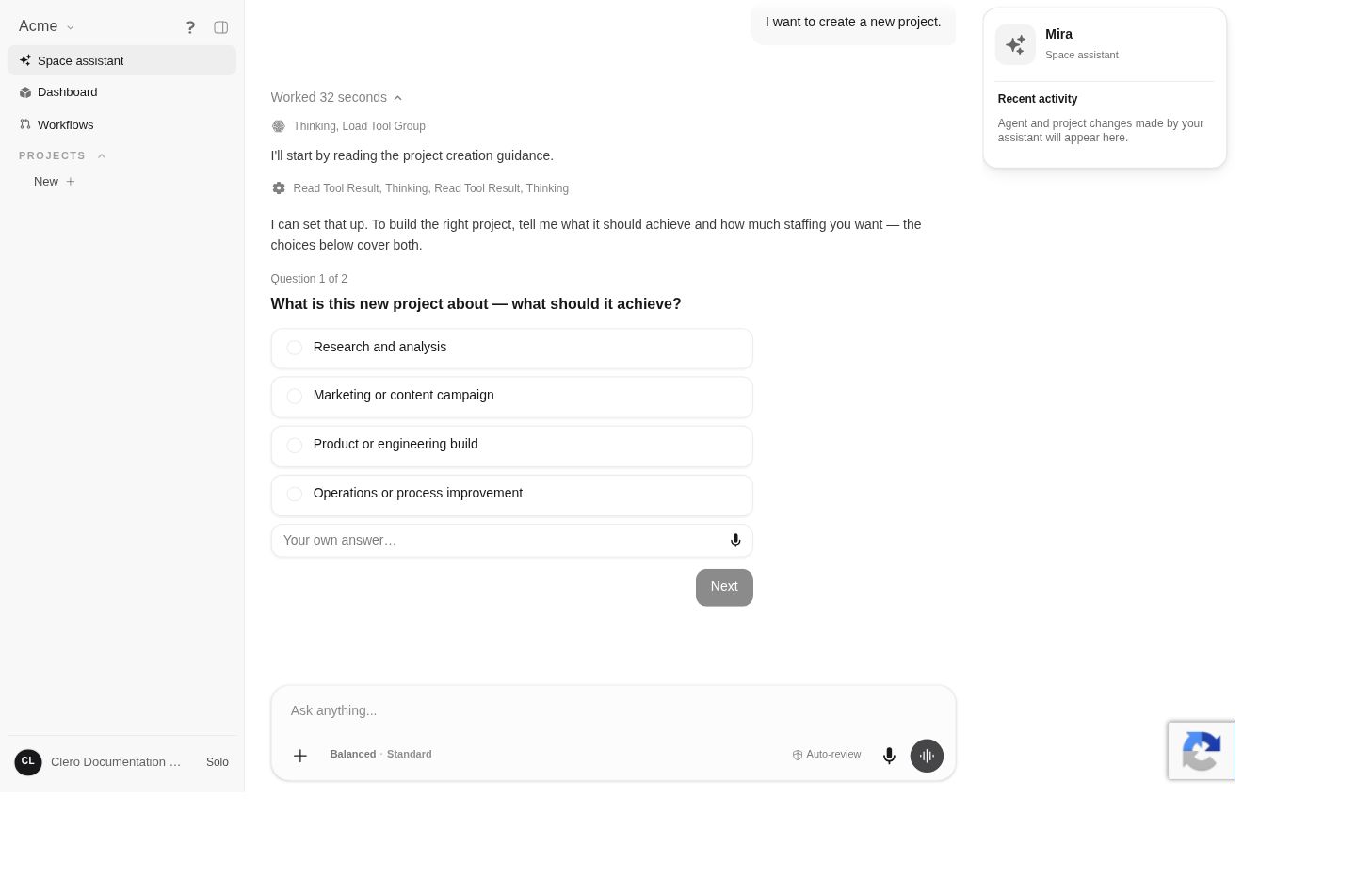 Screenshot detailThe first setup question in the demo.Enlarge ↗
2. Choose the starting team
The staffing question offers a manager and small team, a manager only, or your own agent choices. Select the option that fits your first task, then review the answers and choose Send answers.
The tested example used Set up a manager only for now. A larger team is optional; it is not required for the first deliverable.
3. Confirm the proposed manager
Mira may ask a follow-up question before creating the project. In the demo, it proposed a new Documentation Lead because the space assistant could not be assigned as project manager.
- Read the proposed agent’s name and responsibility.
- Choose the proposed agent or use Describe another agent… to adjust the request.
- Select Send answers when the choice is correct.
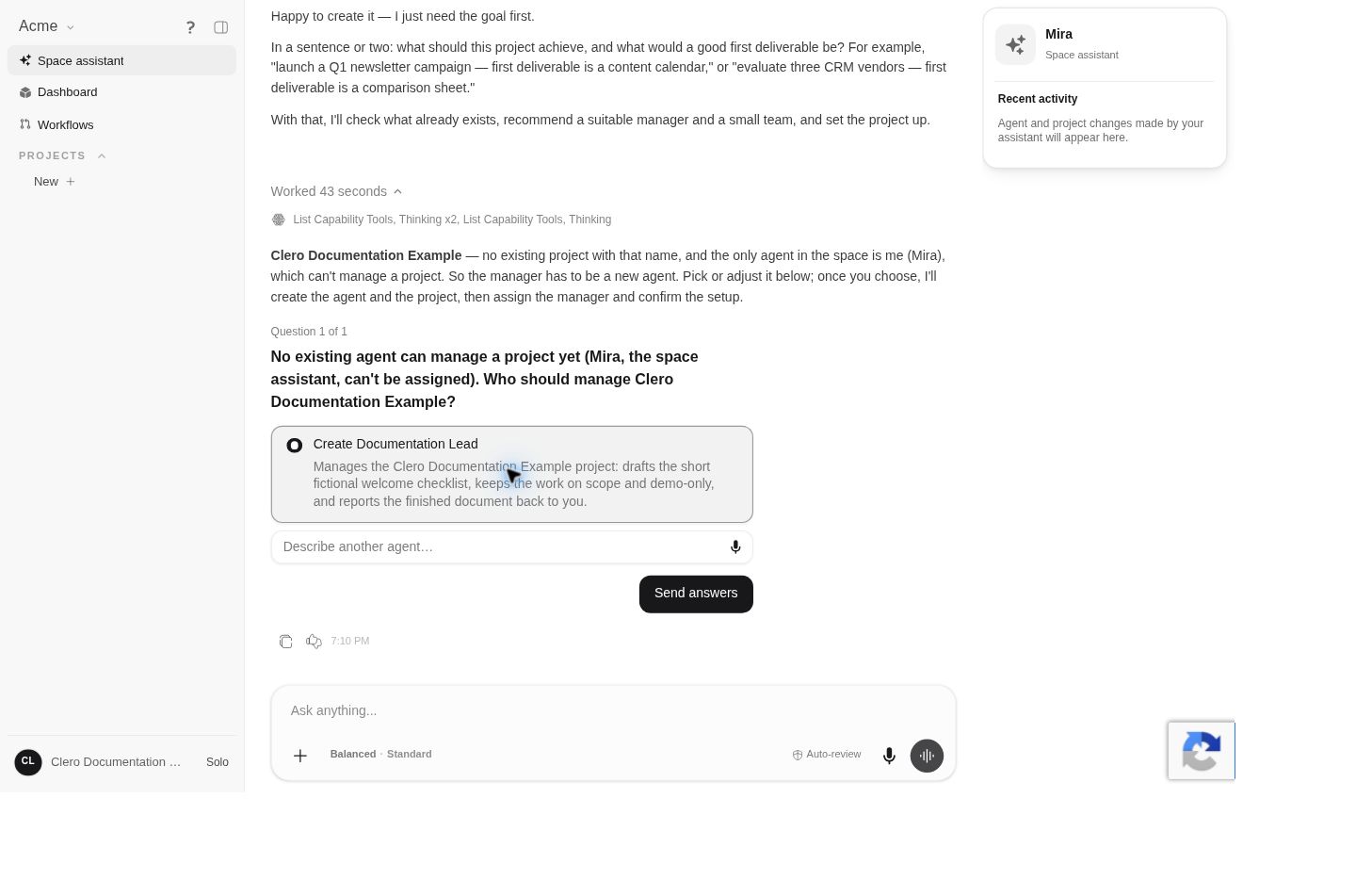
Follow the questions shown in your own conversation. The exact proposal can change with the goal and agents already available.
4. Open the project conversation
The created project appears under PROJECTS. Open it and select Chats. In the demo, Documentation Lead appeared under TEAM CHATS, and Mira handed over the first task.
Read progress in the manager’s conversation. Avoid submitting the same request repeatedly while the task is already running.
5. Open the result
When the manager reports completion, open the linked document or select it from Recent artifacts. The demo result opened beside the conversation and contained a 12-item welcome checklist with a fictional-content notice.
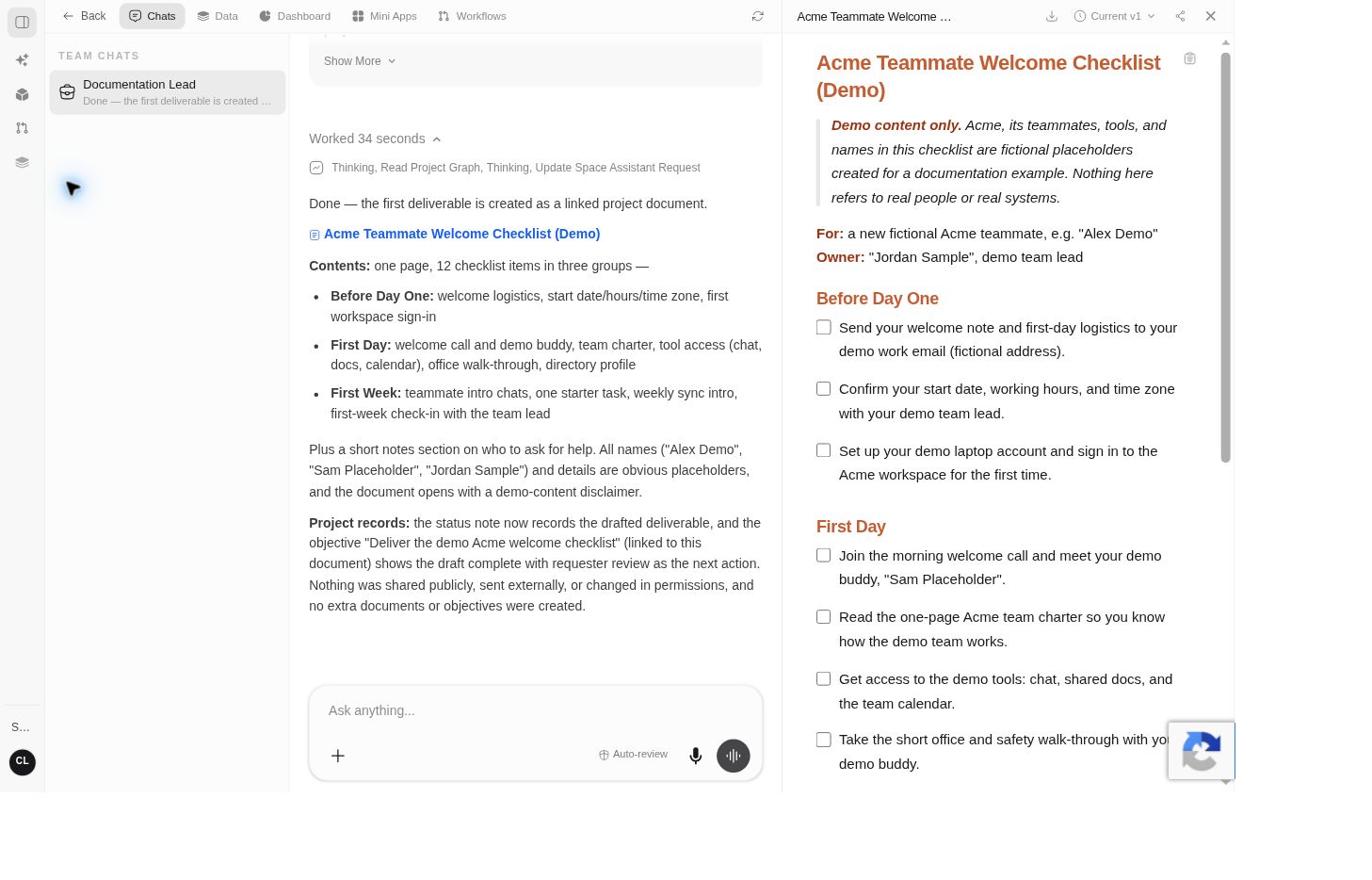
Check your result
Confirm that the deliverable matches your goal, uses the right source material, and makes missing information visible. Request a focused revision if needed. The same document can also be found under the project’s Data tab.
Continue with Documents to inspect versions and export options, or Projects to learn the project navigation.