Use a sheet for information that needs consistent fields, such as a checklist, task tracker, or research comparison. The documentation demo created a native sheet and added one fictional row.
Create the sheet
- Open your project’s Data tab.
- Select New resource → Sheet in the Create section.
- Enter a Title and an optional Description.
- Define the columns and review their field settings.
- Select Create Sheet.
For a first tracker, start with one text column for the task name. Add structure when you know what information you need to record.
Define the columns
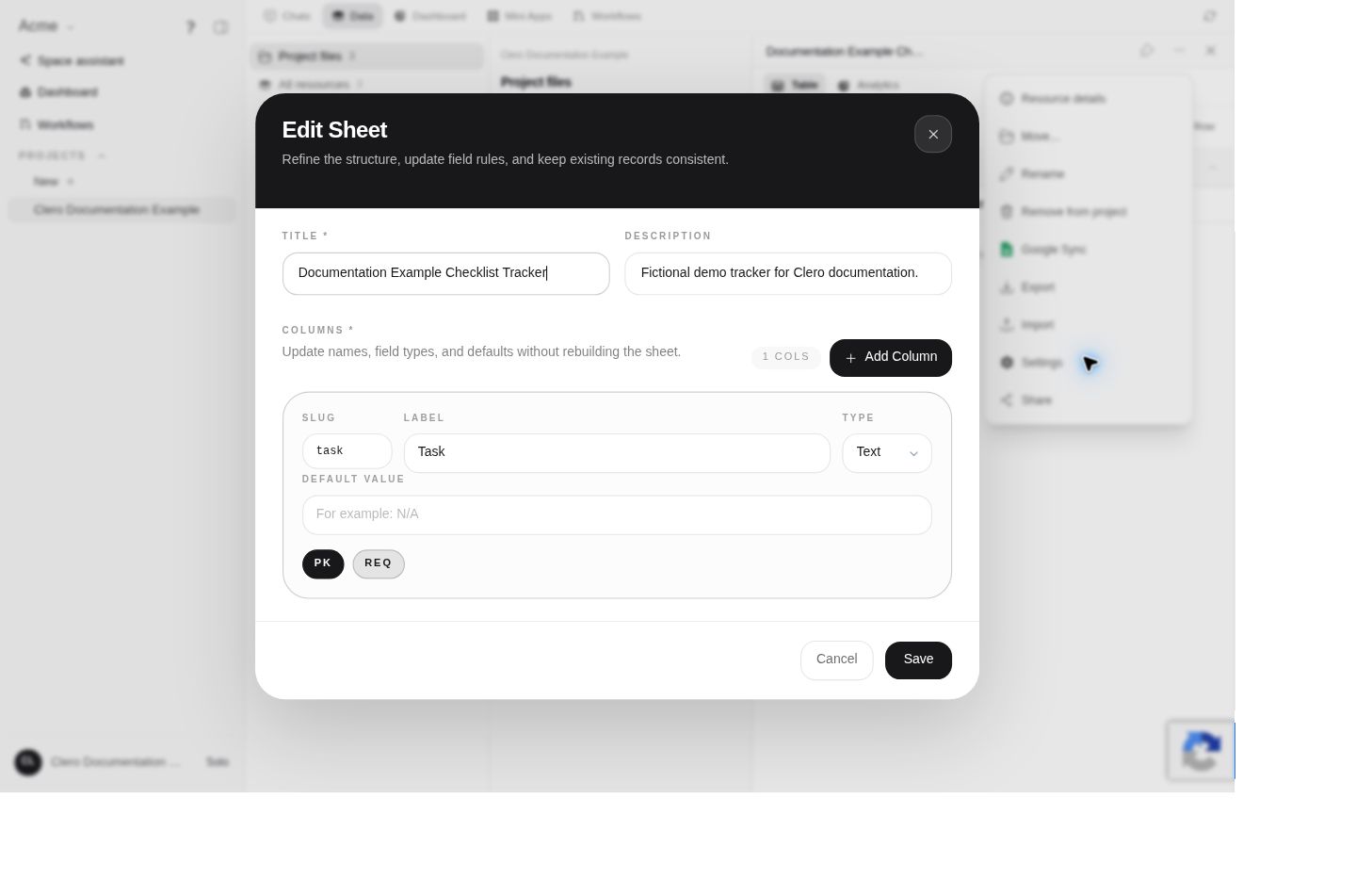
The form includes Slug, Label, Type, and Default value, with PK for the primary key and REQ for required fields. Entering a slug can populate the label automatically; review the resulting label before typing it again.
Observed field types include Text, Email, Phone, Choices, Integer, Number, Boolean, Date, and Date and time. Choose the type that matches the data rather than putting every value into a text field.
Add and inspect a row
- Open the created sheet in Data.
- Select Add Row.
- Enter the values for the defined columns.
- Save the row and check it in the table.
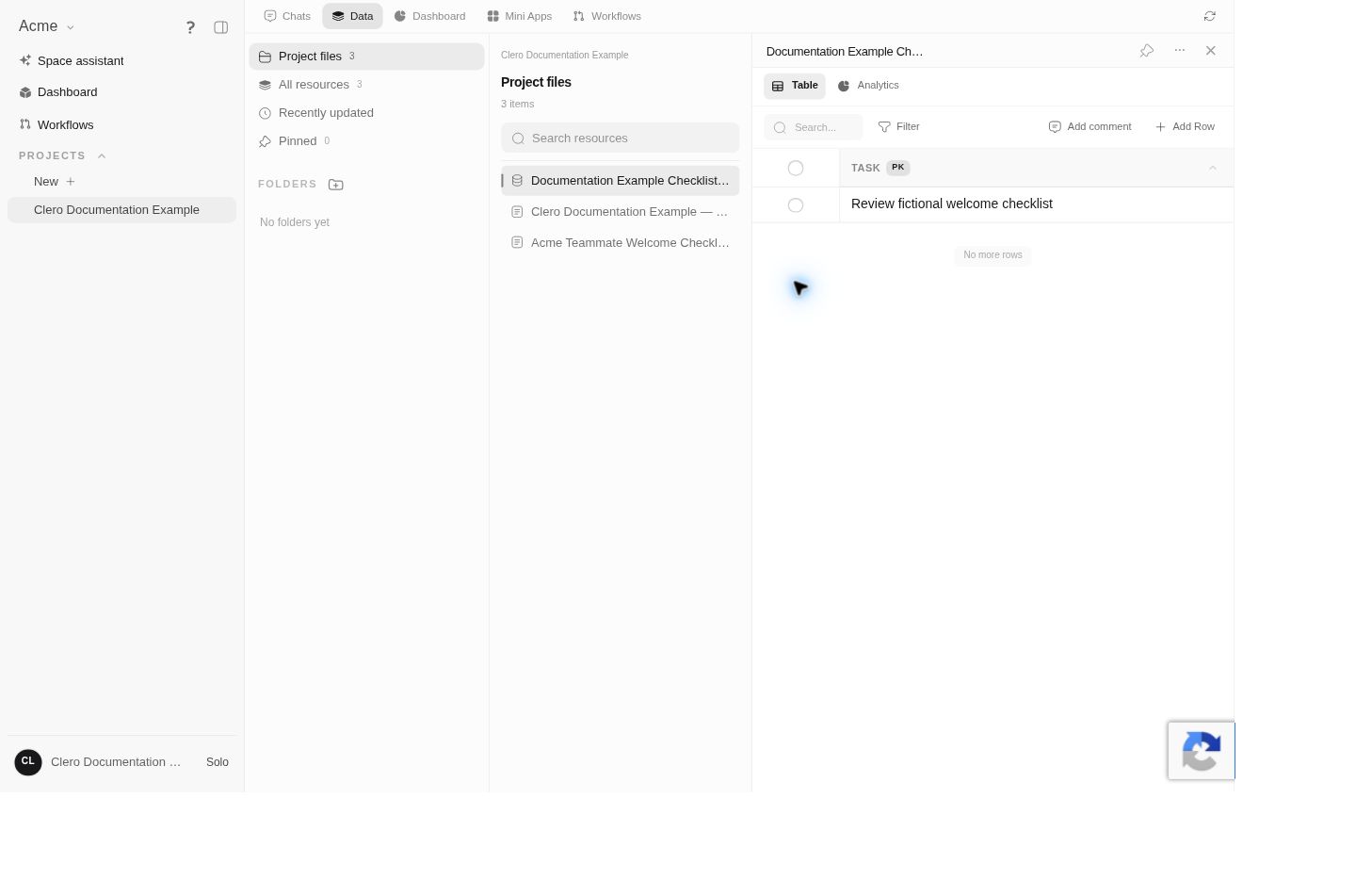
The sheet view also shows Search, Filter, and Add comment, with Table and Analytics tabs. Their presence does not imply that a particular filter or chart has already been configured.
Change the structure carefully
The sheet menu exposes structure/settings controls. Review existing records before changing types, required fields, or key fields; a schema change can affect how later data is entered or interpreted.
The inspected Edit Sheet form has Add Column, Cancel, and Save. A display-label correction was saved and verified in the demo. Changes to types, required-field rules, or key behavior on existing data were not tested.
Import existing data
Data → New resource → Import → Sheet from CSV creates a new sheet. The current source’s import flow is Upload → Preview → Mapping → Import.
- Choose the CSV and check its delimiter and header setting.
- Review the preview.
- Map the source columns and review the primary-key choice.
- For an existing sheet, check whether conflicts will update rows or return errors.
- Import, then inspect the created/updated/error counts before selecting Done.
A completed import can contain skipped or failed rows. Do not retry the whole dataset before checking what succeeded. CSV import was not exercised in the live test.
Google Sheets mirroring
The current source includes Google Sync for mirroring a Clero sheet into Google Sheets, using an active personal Google Drive connection. It does not establish two-way synchronization. Verify the destination and overwrite behavior before attaching a populated spreadsheet. Provider synchronization was not tested.