Clero documents can appear as project resources and as links in an agent’s result. The tested project manager created a welcome checklist and linked it back in the conversation.
Open a document
Use either path:
- In Chats, select the document link in the result or Recent artifacts.
- In Data, find the document and open its resource row.
The demo document opened in a pane beside the conversation, allowing the result and the surrounding discussion to stay visible together.
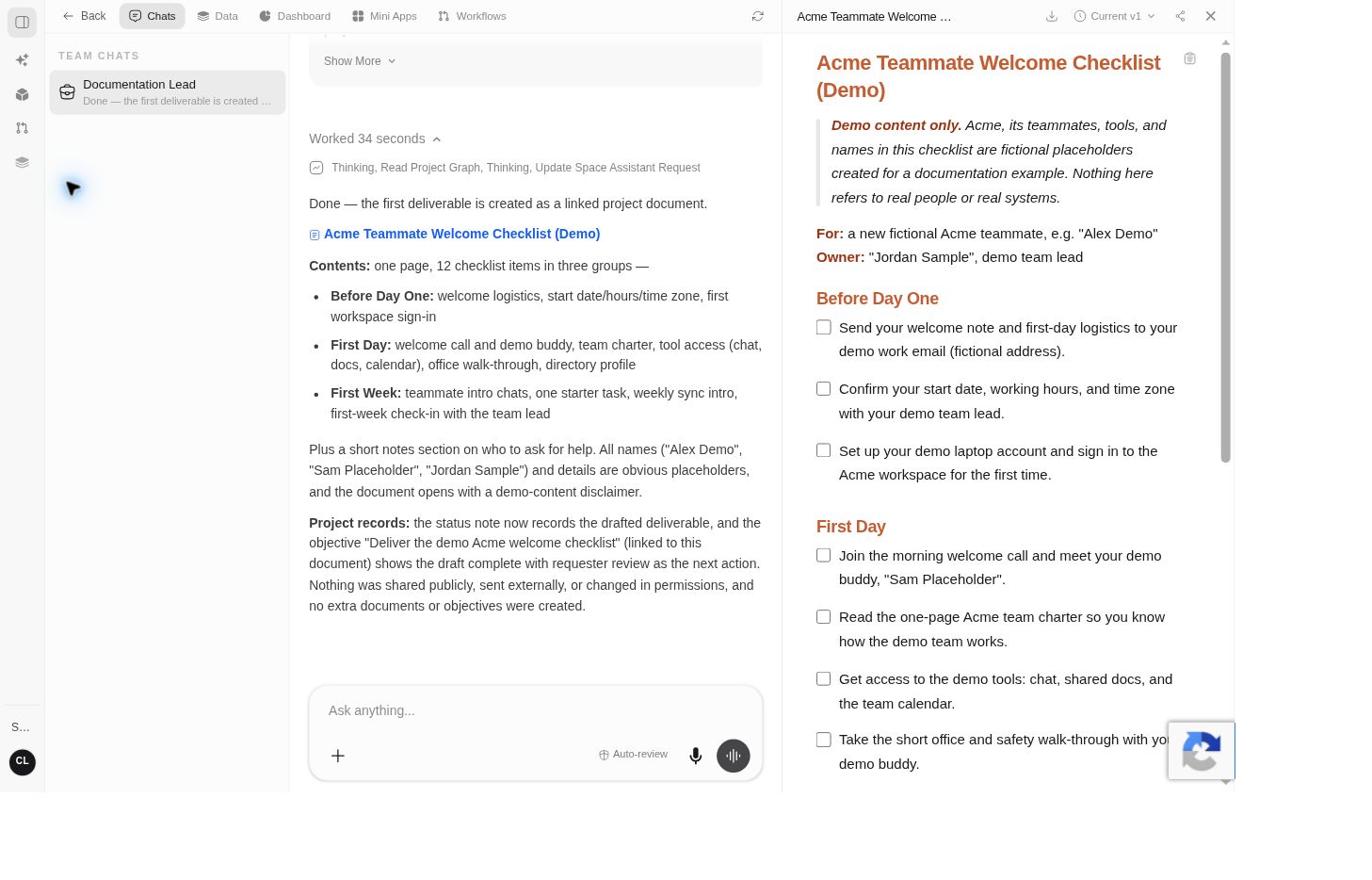 Screenshot detailA genuine document created by the project manager in the fictional demo.Enlarge ↗
Create a document
For an agent-written document, name the audience, source material, and expected format in the task. Ask for the result as a project document if that is where it should live.
For a blank document, open Data → New resource → Document in the Create section. The current source creates an untitled document that you can name and edit. The manual blank-document path is source-backed; the agent-created document path was tested live.
Review before revising
Check the document against the brief. Identify the passage and desired change when asking for a revision. For example:
In the First Week section, replace the vague onboarding task with one concrete next action. Keep the fictional-content notice and the other sections unchanged.
The document title is editable in the viewer. Check the resulting title after a permitted edit instead of assuming it saved.
Inspect versions
Select Current v1, or the current-version label shown in your document, to open Versions. The inspected panel showed the current version, a Refresh control, and Open draft.
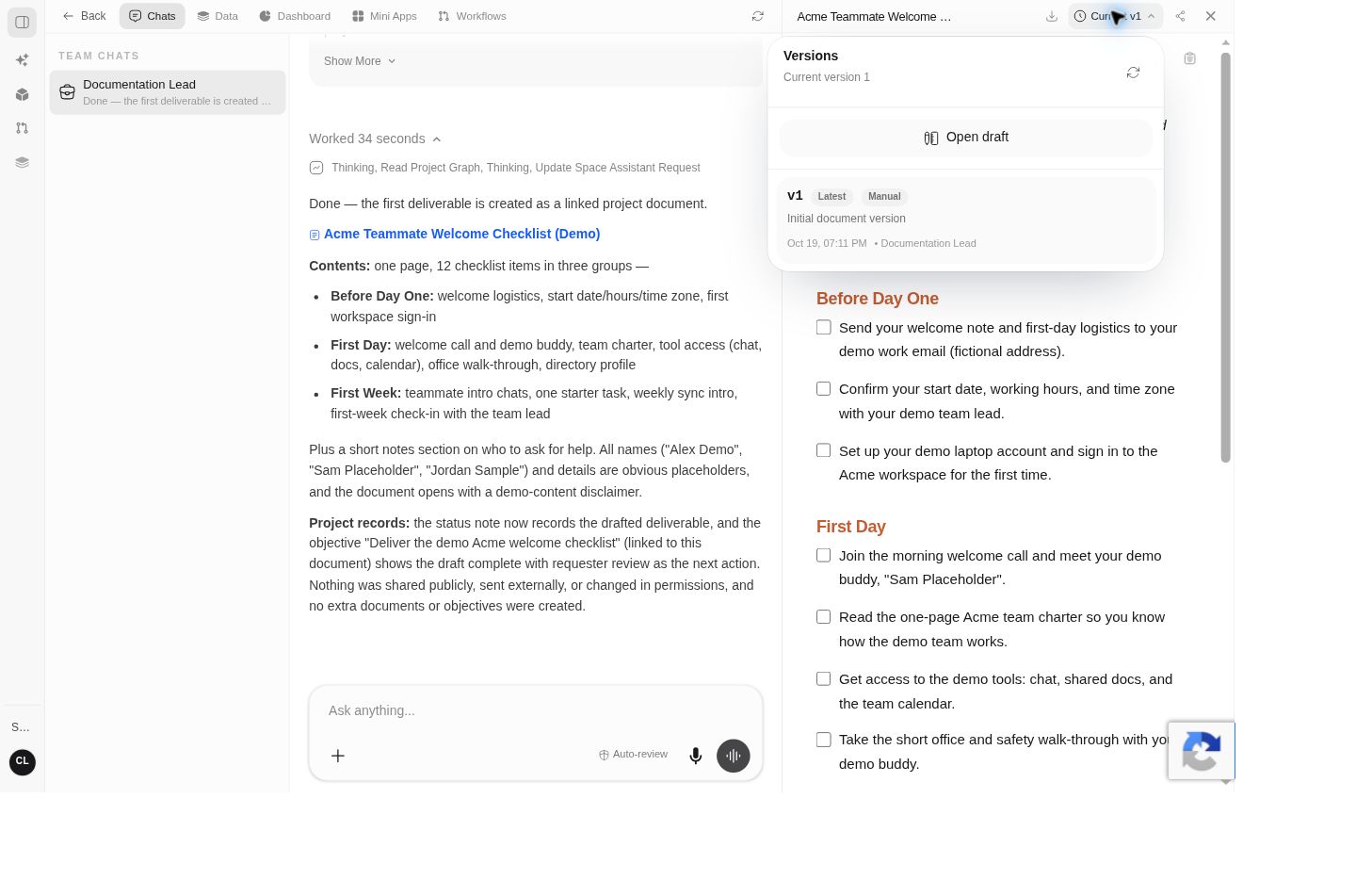 Screenshot detailVersion history was opened; no rollback or draft change was performed.Enlarge ↗
Use version information to identify the document you are reviewing. The version number in your workspace may differ from the example.
Find export options
Open the document’s Download menu. The observed options are Markdown (.md), Word (.docx), PDF (.pdf), and Google Doc.
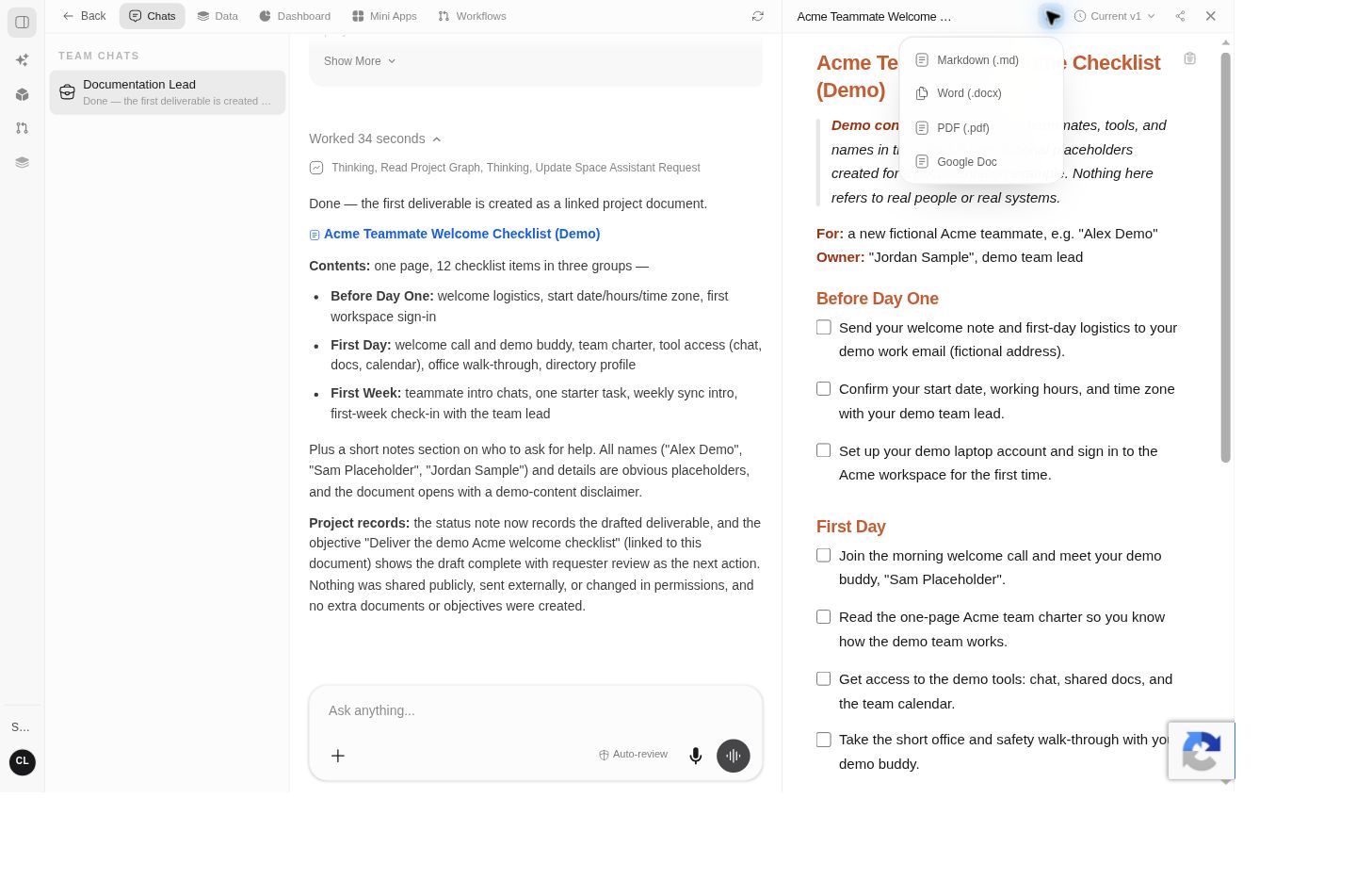
Choose a format suitable for the recipient, then inspect the exported result. An available Google Doc menu item does not prove that a Google account is connected.
Draft versions and publication
The current source’s version-history controls include Open draft, Version description, Publish, Discard, and Restore where permitted. Publish here commits a document version; it is separate from enabling public link access. Review the intended draft/version before applying a history-changing action. These operations were not executed in the demo.
Share deliberately
The viewer also has a share control. In current source, Share document offers Link sharing and permissions such as Can view, Can comment, and Can edit. Link sharing can expand access to people holding the link; it is not a prerequisite to working privately.
Confirm the intended audience and minimum access before changing the setting. Opening or exporting a document does not establish that anyone else can read it. Reset link can immediately invalidate the older shared link, so review its warning before using it. Sharing changes were not tested.