A heartbeat is a project-manager check. It asks the manager to look at the current project, identify useful follow-up, and act within its role. It can finish quietly when nothing needs attention.
Heartbeats are useful for reviewing blockers, unfinished milestones, or stale progress without writing a full recurring workflow. They are different from objective-event rules in Project Flow and from a cron job that performs a defined repeated task.
Choose the right mechanism
| You want… | Use… | What starts the work |
|---|---|---|
| A manager response to an objective becoming Ready or Blocked | Project Flow | A qualifying objective event |
| A manager check after it has been inactive | Idle check | The configured inactivity period, subject to queue conditions |
| A manager review once later or at the same local time daily | Scheduled heartbeat | A one-time or daily manager-check schedule |
| One specific action at a future time | Scheduled task | A saved one-off execution |
| A repeatable task on a cron timetable or interval | Recurring schedule | The saved recurring automation definition |
A manager check is not a guaranteed report at an exact minute. If your requirement is a specific deliverable or external action, choose the corresponding scheduled task or recurring workflow and define that result explicitly.
Open Heartbeats
- Open the project.
- Select Workflows → Heartbeats.
- Review Idle check and Scheduled checks separately.
- Select Schedule check to inspect or create a timed manager check.
The live Member account could open this page and both schedule forms. Idle check was off. No heartbeat was saved, enabled, run, or disabled during the documentation pass.
Adaptive idle checks
Idle check, labeled Adaptive, runs after the project manager has been inactive for the selected time. It is not a fixed wall-clock cron schedule.
When you intend to enable it, use the Idle check toggle and choose the available interval. The current source exposes 15 minutes, 30 minutes, 1 hour, 6 hours, and 1 day. Changes save when made; there is no separate confirmation Save step for these controls.
The implementation measures from the manager's latest finished run, or the settings update when there is no earlier run. A finished check that had nothing useful to do still becomes a new inactivity reference point. The interval is therefore not simply measured from when you first enabled the toggle.
A busy manager or unread project inbox can defer the check. The system does not start an overlapping idle run just because the interval elapsed. Choose a cadence for useful project oversight rather than treating it as an exact response-time guarantee.
Turning Idle check off affects the adaptive idle mechanism. It does not disable a separate daily or one-time scheduled check, Project Flow, or another automation.
Schedule a daily manager review
- Select Schedule check.
- Choose Daily — At the same local time.
- Enter a useful Name, such as “Morning launch review.”
- Set When and choose the intended Timezone.
- Optionally complete What should the manager focus on?
- Review the project, time zone, and purpose before selecting Schedule check.
- Inspect the saved row's state and next run. Saving the schedule is not evidence that a check has executed.
For the focus field, a bounded example is:
Review the launch objectives, blockers, and overdue milestones. Follow up on work that is still relevant, and surface decisions that need me. Do not send external messages or publish changes.
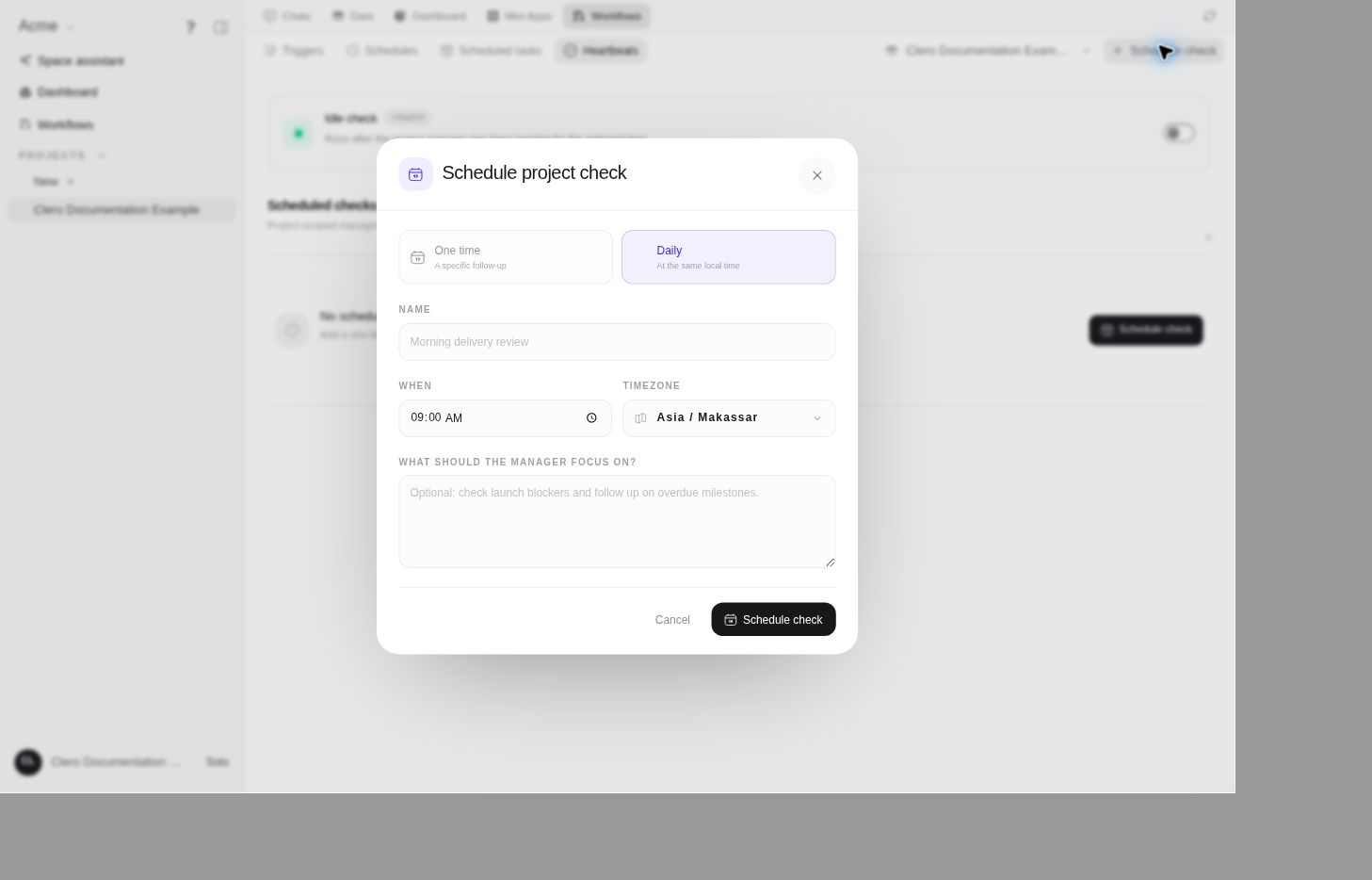
The inspected form initially selected Daily and 09:00. The time-zone default comes from the browser, with a UTC fallback in source. Always verify it instead of assuming the account, project, or your intended audience uses that zone. Exact behavior around skipped or repeated daylight-saving times was not live-tested.
Schedule one follow-up check
Choose One time — A specific follow-up in the same form. When becomes a date-and-time field. Select a future time and verify the time zone before saving.
Example purpose:
After the planned handoff, review this project's remaining launch blockers and tell me whether a decision is still needed. Do not create a recurring check.
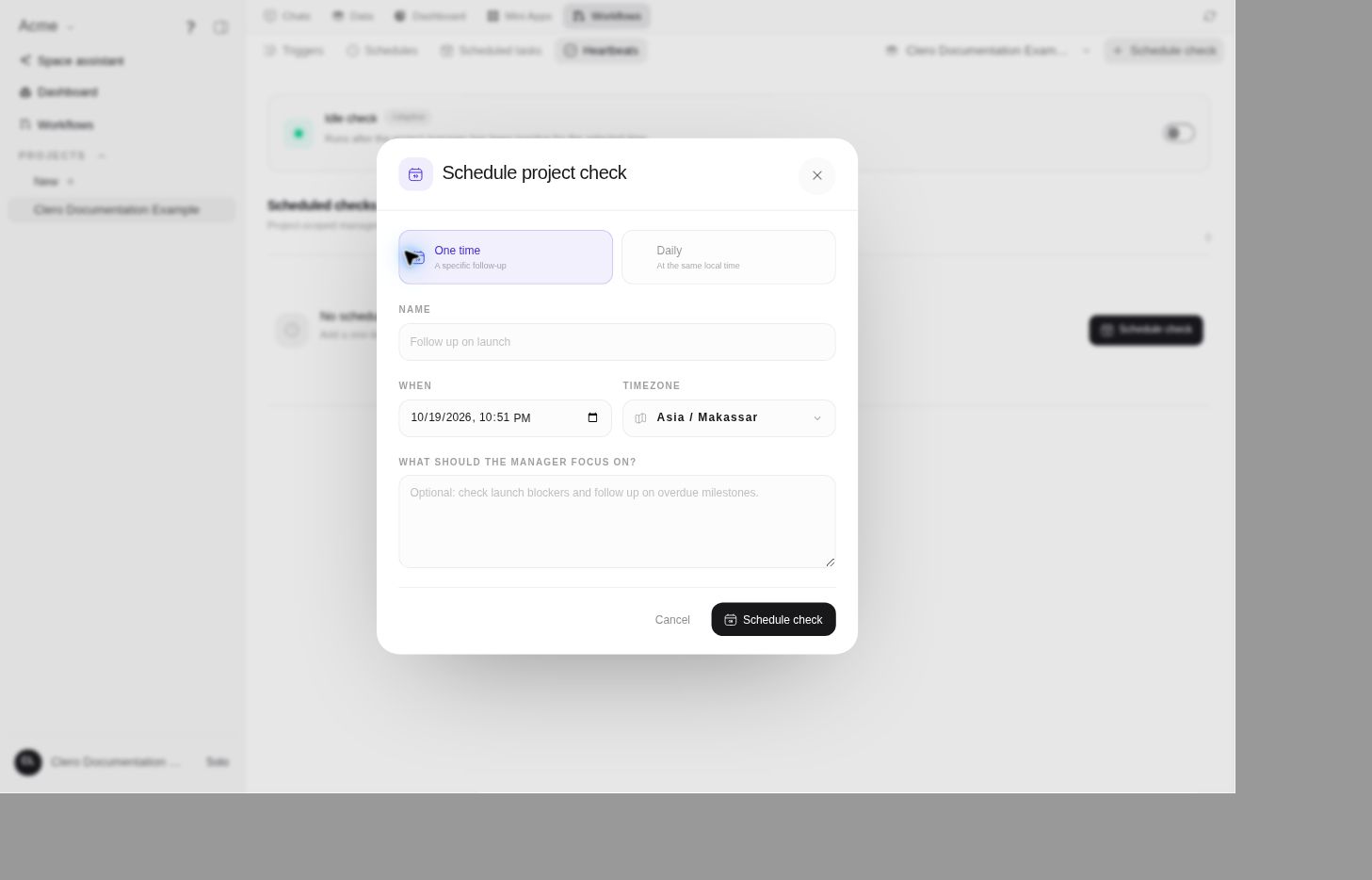
Choose this when the outcome is a manager reassessment. For a precise future action such as preparing a specified report, use Scheduled tasks instead. Both can happen once, but they are different records with different controls.
Understand when a due check can run
Scheduled checks target the project's current assigned manager and continue its ongoing project conversation. They require an active project, an assigned manager, and available funding. They can wait while the manager is busy or the project inbox still has unread work.
A delayed check retains its due state for a later scheduler pass. Do not assume that the clock time guarantees an immediate separate run, or create a duplicate because it has not started at that exact moment. Check the manager's availability and actual run history.
Background work can use allowance or balance under the current account rules. See Plans and usage. This guide does not promise free checks, unlimited execution, or fixed production capacity.
Read schedule state and execution state separately
Current source shows scheduled-check rows with a name, purpose, schedule, Next run or Ran, and an Active, Paused, or Completed state.
For a one-time heartbeat, Completed means its manager-run record has been created. The schedule can reach that state before execution is dispatched or the run succeeds. Inspect Dashboard → Runs, the manager conversation, and any resulting artifact before calling the work complete.
A check may decide there is nothing worth reporting and finish quietly. No new chat message by itself does not prove failure. Conversely, an acknowledgment does not prove the check reviewed every item successfully.
Pause, resume, or replace a check
The source-backed scheduled-check row has an active toggle while it is not Completed. Turning it off pauses future starts and clears the next run; turning it on reactivates an eligible schedule. A daily check gets its next occurrence; a paused one-time check can resume only while its original time is still in the future. This control is separate from Idle check.
It does not cancel a manager run already created or executing. To stop current execution, inspect that run and use its available stopping control separately. Previously completed actions remain completed.
The inspected source has no heartbeat Edit or Delete control, and its update endpoint changes only the active state. To change an unfinished check's timing or purpose, pause the old one and create the intended replacement through the form, then verify only the desired schedule is active. Do not invent a Delete action or promise that a completed one-time check can be resumed.
These lifecycle controls are source-backed. Creating, pausing, resuming, replacing, and executing a heartbeat were not tested live in this documentation pass.
What to ask the agent
Agents can inspect saved one-time and daily heartbeat checks through list_project_heartbeats. This tool does not return the adaptive Idle check settings; inspect those in the UI. A useful request is:
List this project's scheduled heartbeat checks, including one-time or daily type, active or paused state, next run, and the current manager who will run them. Do not change them.
The current agent toolset intentionally does not create, edit, enable, disable, pause, or resume heartbeats. Use the project UI with the required write access for those changes. This differs from cron schedules and one-off scheduled tasks, which have agent-facing creation and management tools.
If a check seems missing or inactive
- Confirm the intended project and assigned manager.
- Inspect Idle check and each scheduled row separately.
- Check the time zone, active state, and next due time.
- Check whether the manager is busy, waiting on a required action, or has unread queued work.
- For timed checks, inspect funding and the actual run state.
- If the one-time row says Completed, inspect its dispatched run rather than scheduling another copy automatically.
For manager starts driven by objective changes, inspect Project Flow; changing heartbeat cadence does not change those status rules.