Open Clero and select Log In. Use the sign-in method associated with your account.
Sign in with Google
- On the sign-in page, choose Continue with Google.
- Follow the Google sign-in flow and check the selected account.
- Complete any verification requested by the service.
Do not create another account just because the wrong Google identity was selected. Return to sign-in and use the identity associated with your Clero workspace.
Sign in with email
- Enter the email address associated with your account.
- Enter your password in the password field.
- Select Sign In and complete any additional verification.
A Sign Up link is also visible for new accounts. Account-creation requirements may differ from sign-in; follow the current form and terms shown there.
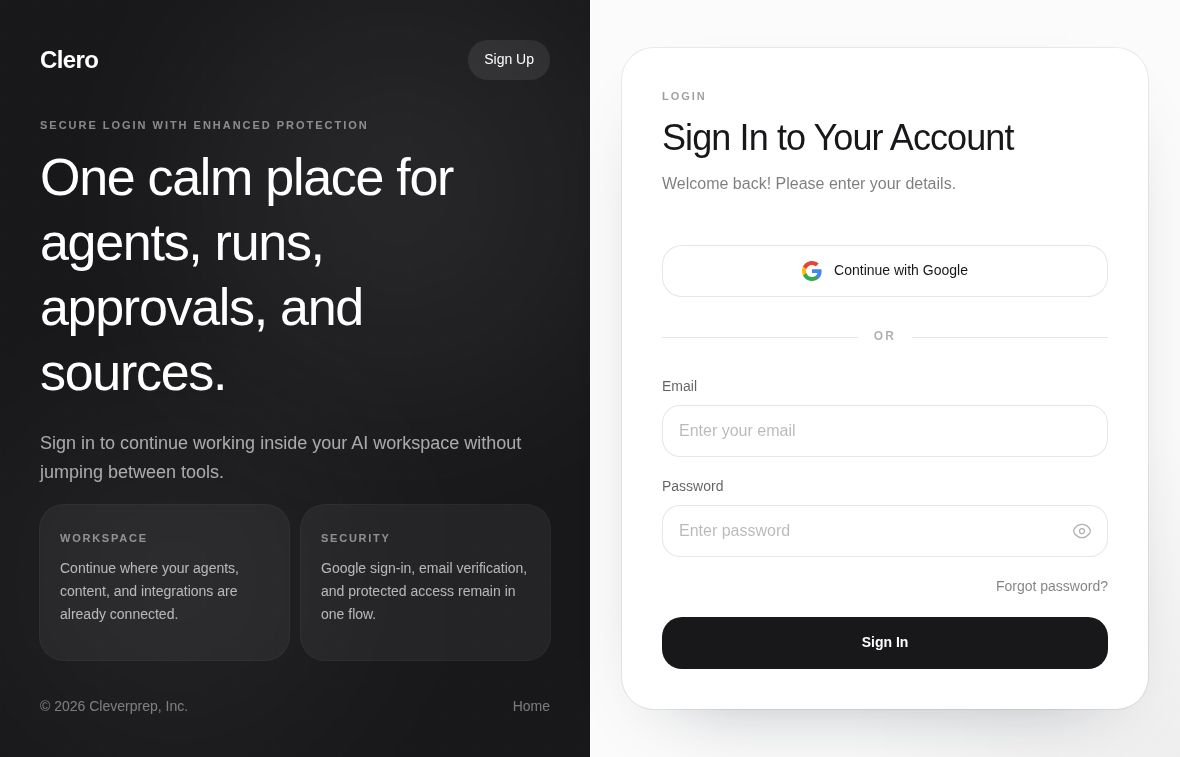 Public sign-in screen. No account details are entered.Enlarge ↗
Check where you arrived
After sign-in, check the workspace name and the work visible to you. The inspected demo opens a workspace with Space assistant, Dashboard, and Workflows in the sidebar.
If you expected an existing project and see an empty Dashboard, check the account and workspace first. An empty view is not evidence that a project has been deleted.
If sign-in does not work
- Check that you are on the official clero.so domain.
- Use the original sign-in method for the account.
- Complete any service verification rather than repeatedly submitting the form.
- Record the visible error and the approximate time if the problem continues.
Keep passwords, verification codes, and recovery links out of screenshots or support messages. Continue with Workspace navigation once you are signed in.