The space assistant gives you one place to organize work across accessible projects. It can help set up projects and their teams, inspect summaries, and ask project managers for detailed answers or actions. It is separate from every project's team.
In the documentation workspace, the space assistant is named Mira. Your assistant may have another name.
When it is useful
Use the space assistant when the request crosses projects, when you do not yet know which project or agent should own the work, or when you need to create and staff a new project. Examples:
Create a project for an internal welcome guide. Recommend a manager and only the specialists needed for the first draft.
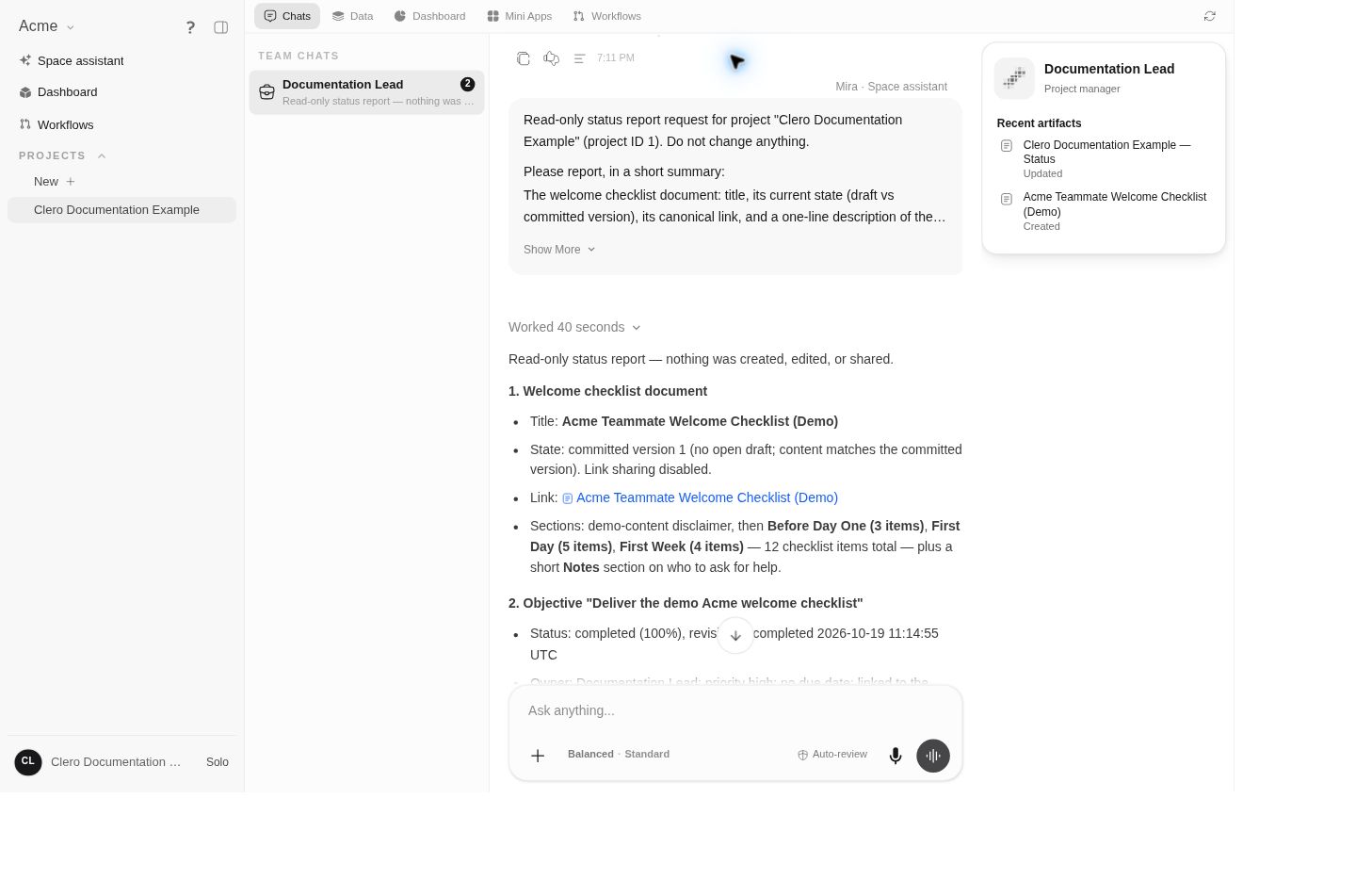
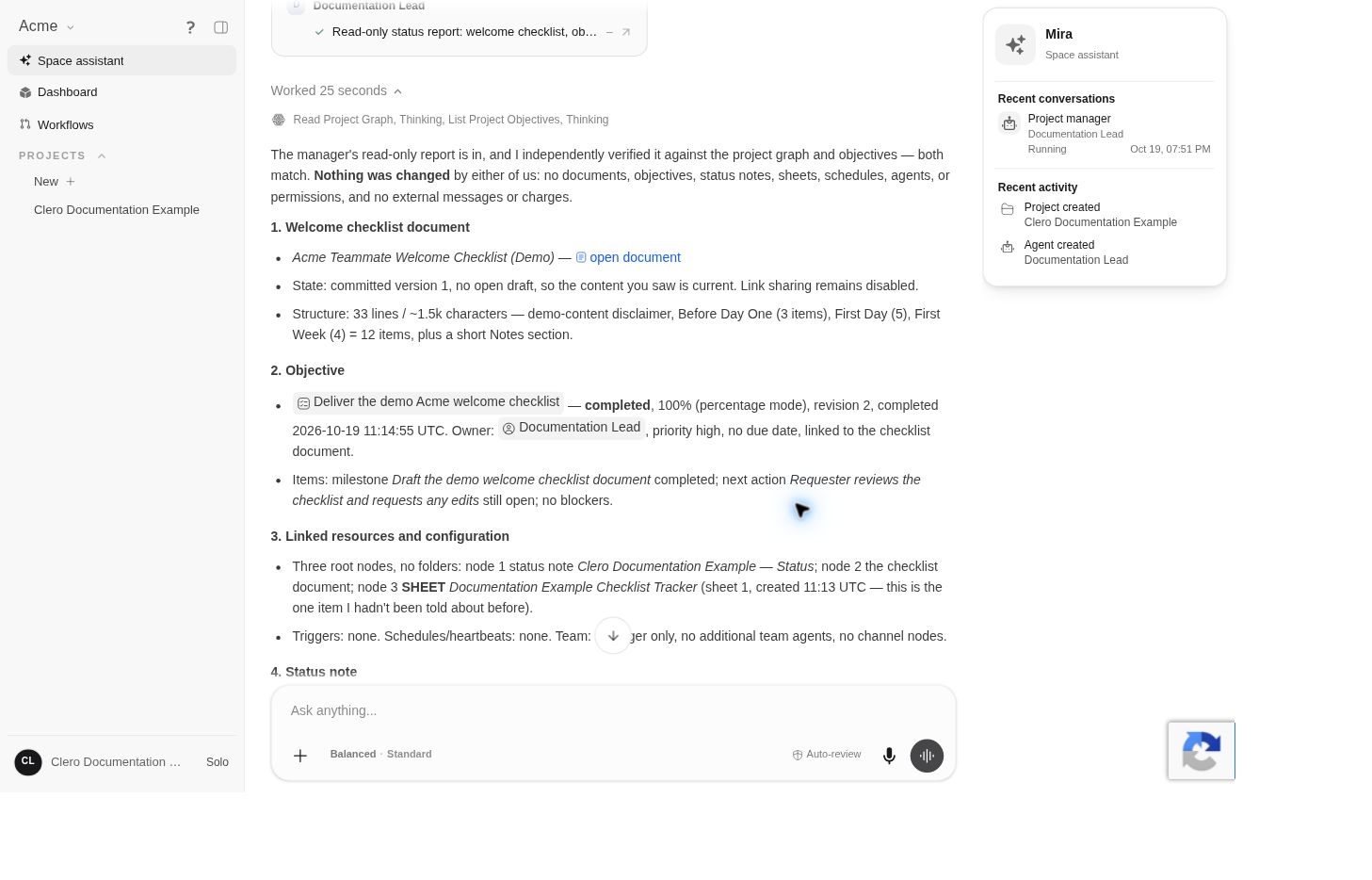
Ask the manager of Clero Documentation Example for its current objective state, latest deliverable, and any blocker. Return a short update here. Do not change project data.
Compare the current status of these two projects. Ask their managers to explain any blocker that the status summaries do not resolve.
It can read accessible project summaries, documents, and sheets. Detailed investigation and changes to project data are delegated into the project. The manager is the usual coordination route; a bounded task can also go to an eligible current teammate. The space assistant does not itself become another project worker.
Ask a manager from the space assistant
- Open Space assistant in the sidebar.
- Name the project and what you want its manager to do.
- Specify the output and whether the request is read-only or authorizes a change.
- Review the delegation activity and wait for the manager's result.
- Open the linked project or artifact if the answer depends on a saved result.
The source supports discovery through list_projects and assignment through assign_agent_task. You do not need to know internal IDs to write a good request.
In the live demo, Mira's assignment succeeded with routing to the existing Documentation Lead project-manager conversation. The tool result explicitly reported that the request was queued there and no separate task or chat was created. The manager's read-only response returned the project status and resources, and Mira synthesized the result back in Home.
Understand what happens to the request
Routing depends on the project's conversation mode. In Persistent team, the manager receives a message in its ongoing conversation, queued behind active work when needed. In Flexible chats, current source can create a focused delegated task instead. See Delegation and messages.
An ongoing-conversation request has its own tracked status. Acknowledged, in-progress, and needs-input requests remain open; completion, failure, and cancellation close them. An ordinary conversational reply does not by itself prove the tracked request is complete.
The space assistant's own conversation remains separate from project conversations. The intended project request crosses that boundary; do not assume its entire private history is copied into every project.
Ask for a follow-up rather than duplicate work
If the result needs clarification, name the existing request and the missing information:
Follow up with Documentation Lead on that status request. Please distinguish the objective's current state from the older status-note text, and return the supporting artifact link.
The current tools can list requests and tasks, inspect history, and send a follow-up. Asking for an update on existing work is clearer than asking the assistant to start the same work again.
Keep personal reminders in Home
The space assistant can also create one-off or recurring reminders for itself in your Home conversation. Those are personal Home schedules, not project workflows. They cannot be reassigned to another agent or given external report destinations. For work owned by a project, ask it to coordinate the request into that project instead. See Scheduled tasks and Recurring schedules.
Know its boundaries
The space assistant's capabilities are defined by its role. It is not a shortcut around project write access, agent-management permissions, tool grants, or action approvals. It can manage only accessible agents it is allowed to manage, and cannot grant itself arbitrary tool access.
If a project needs an additional specialist, ask the space assistant to add the appropriate role. The project manager coordinates the work but is not expected to create or repurpose agents itself.
For identity and configuration controls, see Space assistant settings. For the first setup example, see Create your first project.