The workspace sidebar is the main way to move between conversations, projects, and workflow activity.
Open the space assistant
Select Space assistant in the left sidebar. This opens the conversation for the assistant assigned to your space. The documentation demo uses an assistant named Mira; your assistant may have another name.
Use this conversation for a request about organizing work or starting a project. Keep the intended outcome clear so the assistant can ask relevant setup questions.
Open the Dashboard
- Select Dashboard in the sidebar.
- Review the projects and activity visible to your account.
- Use Last 7 days, Last 30 days, or Last 90 days to select the activity period.
The initial demo has no projects, so it shows an empty state and New project. A new or empty workspace can legitimately look this way.
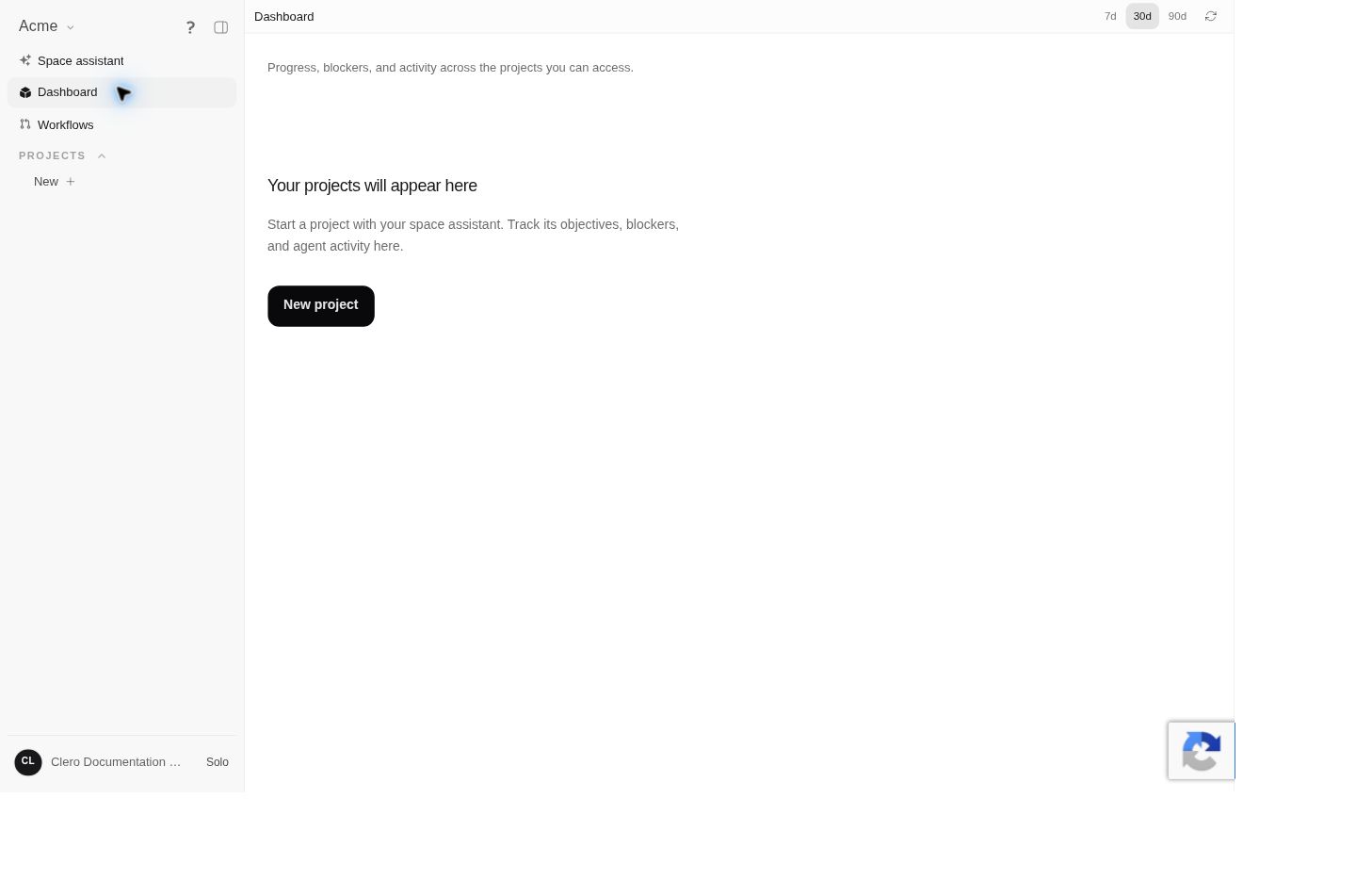 Screenshot detailThe empty Dashboard before the demo project was created.Enlarge ↗
Start a project
Under PROJECTS, select New. This starts the project-creation conversation with the space assistant. Follow Your first project for the goal and staffing questions.
Find workflow activity
Select Workflows to open the workspace workflow view. The inspected interface contains Triggers, Schedules, Scheduled tasks, and Heartbeats, with an All projects filter. The workspace Heartbeats view lists saved project checks. Open a project’s Workflows → Heartbeats to configure its Idle check or one-time/daily checks; see Heartbeats. Objective-event conditions live separately at Project → Dashboard → Objectives → Project flow; see Project Flow.
A trigger list with no entries displays No triggers yet. It is not an error. See Schedules and triggers for how to inspect this area.
Find settings and connections
Open Settings to reach Connect Apps. The connection catalog is separate from project navigation. Choosing a project does not itself connect your email or another service.
For assistant-specific controls, use Space assistant settings. For a page that says No Access, use Roles and access.